

Welcome to Qyuro
Qyuro is an AI assistant platform that helps you research, write, analyse, and think through complex tasks using the capability of multiple leading AI models from a single, unified workspace. Whether you are new to AI tools or moving across from another platform, this guide will get you productive quickly.
1.1 Creating Your Account
Setting up a Qyuro account takes under 2 minutes. Here is the process from start to first conversation:
- Open your browser and visit qyuro.com.
- Click the button labelled Sign Up at the top right of the page.
- Enter your email address and choose a secure password. Alternatively, you can continue with Google or Apple Sign-in .
- Check your email inbox for a verification message. Open the link inside to confirm your address.
- Once confirmed, you will be taken directly into your Qyuro works
You do noy need a credit card to begin. The free plan is available immediately after account creation with no trial period or expiry.
1.2 Understanding the workspace Layout
When you first log into Qyuro, you will see three key areas:
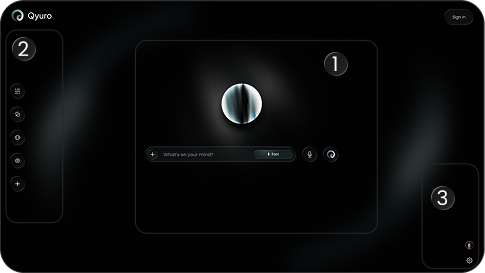
The Conversational Panel:
This is the main area where you type questions, requests, or tasks. Your current conversation appears here, and you can scroll up to review everything from the beginning of the session.
The Side Bar
On the left, the sidebar shows your saved conversations, project workspaces, and quick access to your prompt library. You can collapse this panel if you prefer a focused view.
The Settings and Model Panel:
Located in the top right corner, this is where you switch between AI models, adjust response settings, and access your account details.
1.3 Starting Your First Conversation
Click inside the message input field at the bottom of the screen and type your question or request. Press Enter or click the Send button to submit.
Qyuro will begin generating a response within seconds. There is no specific format required. You can write naturally, the same way you would ask a knowledgeable colleague.
For example:
Summarise the key arguments in favour of renewable energy transition for a business audience. Keep the response under 300 words.
Qyuro will read the instruction, select the most appropriate processing approach for the task, and return a structured response. The clearer your instruction, the more precisely calibrated the output will be.
1.4 Choosing an AI Model
Qyuro gives you access to multiple AI models from different providers. Each model has different strengths depending on the type of task you are working on.
| Model Category | Best Used For | Response Style |
|---|---|---|
| General Purpose | Everyday tasks, writing, question answering | Balanced, clear, conversational |
| Research Mode | Deep analysis, sourced answers, fact-based queries | Detailed, cited, structured |
| Creative Mode | Copywriting, storytelling, brainstorming | Expressive, open-ended, flexible |
| Code Mode | Code generation, debugging, logic tasks | Precise, formatted, annotated |
To change the model, click the model selector at the top of the conversation panel. Your selection persists across your session until you change it again.
1.5 Setting Up a Project Workspace
If you work on ongoing topics, reports, or client briefs, project workspaces help you keep related conversations and files organised in one place.
- Click the plus icon in the left sidebar next to the heading Workspaces.
- Give your workspace a descriptive name such as Q3 Competitive Research or Product Launch Planning.
- All new conversations started inside this workspace will be grouped together.
- You can return to any workspace at any time and pick up exactly where you left off.
On paid plans, workspaces also support persistent AI memory, which means Qyuro can remember key facts about your project across multiple sessions without you repeating them.
How Qyuro Processes Your Questions
Understanding how Qyuro generates responses helps you ask better questions and interpret results more accurately.
This section explains what happens behind the interface when you submit a request.
2.1 From Input to Output: The Basic Process
When you submit a message, Qyuro follows a structured process to generate its response:
- Your message is received and analysed to determine the intent and type of task.
- Based on task type, the system routes the request to the most appropriate AI model configuration.
- If your request involves factual or current information, Qyuro may supplement the model’s knowledge with real-time web search results.
- The model processes your input alongside any relevant context from your conversation history and generates a response.
- The response is formatted and returned to you in the conversation panel.
The entire process typically completes in two to six seconds depending on the complexity of your request and the length of the expected output.
2.2 How Qyuro Uses Context
Context is central to the quality of responses you receive. Within a single conversation, Qyuro reads all of the previous messages before generating each new reply. This means you do not need to repeat background information every time you ask a follow-up question.
For example, if you start a conversation by explaining that you are writing a report for a technical audience about cloud infrastructure costs, every subsequent response in that conversation will reflect that framing without you needing to repeat it.
On plans with persistent memory enabled, Qyuro can also carry forward key facts and preferences across separate sessions. If you tell Qyuro your preferred output format or writing style, that preference will apply to future conversations in the same workspace.
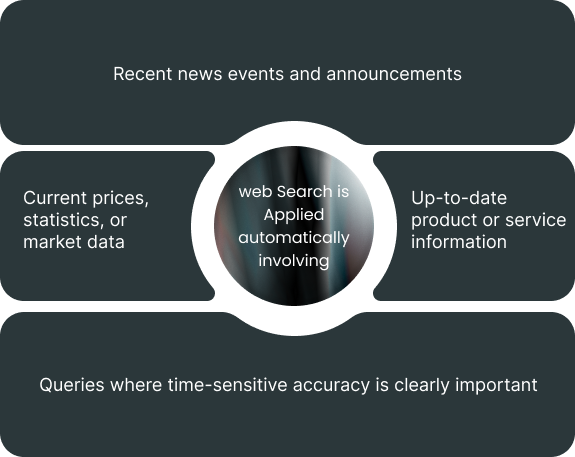
2.3 When Qyuro Uses Web Search
Some responses benefit from information that is more recent than any AI model’s training data. In these situations, Qyuro performs a real-time web search to retrieve current information and incorporates it into the response
You will know when web search is being used because the response will include source citations. You can click on any cited source to view the original page.
2.4 Understanding Response Confidence
Qyuro’s responses are not always equally certain. For straightforward factual questions with well-established answers, the response will be direct and confident. For questions involving interpretation, nuanced reasoning, or uncertain information, the response may acknowledge the complexity and present multiple perspectives.
When Qyuro expresses uncertainty or presents alternatives, this is intentional. Presenting a single confident answer on an inherently complex question would be less useful than acknowledging the full picture.
Practical Tip
If you need a definitive recommendation rather than an analysis of options, include that in your prompt.Write something like: Based on the following options, give me a single clear recommendation with your top reason. This instruction changes how Qyuro structures its response.
2.5 Limitations to Be Aware Of
Qyuro is a capable tool but it has documented limitations that you should understand before relying on it for high-stakes decisions:

Knowledge cutoff: The AI models underlying Qyuro have training data with a cutoff date. For very recent events, Qyuro relies on web search, which it will indicate clearly.
Factual accuracy: While Qyuro draws on large volumes of trained knowledge, it can occasionally produce incorrect information on specific technical or niche topics. Always verify critical facts against authoritative sources.
Interpretation variance: For open-ended tasks like creative writing or strategic analysis, there is no single correct answer. Qyuro will produce a well-reasoned response, but your own judgement about fit and relevance is essential.
Length limits: Extremely long output requests may be truncated in a single response. For lengthy documents, ask Qyuro to produce the content in structured sections.
AI-Assisted Research in Qyuro
One of Qyuro's most practical capabilities is supporting research tasks that would otherwise require significant time investment. This section explains how to structure research sessions effectively.
3.1 Setting Up a Research Session
A well-structured research session in Qyuro begins with a clear brief. The more context you provide at the start, the more relevant and focused the outputs will be throughout the session. A useful research brief covers:
- The topic or question you are investigating
- The purpose of the research (internal report, public article, academic review, etc.)
- Your intended audience and their knowledge level
- Any specific angles or sub-questions you want addressed
- Your preferred output format (bullet points, narrative paragraphs, structured sections)
3.2 Working Through Research in Stages
For complex topics, a staged approach produces better results than asking for everything in one large prompt. A typical research workflow in Qyuro follows this pattern:
- Start with a landscape overview to understand the broad shape of the topic.
- Identify the most important sub-questions that need deeper investigation.
- Drill into each sub-question with focused follow-up prompts.
- Ask Qyuro to synthesise the findings into a structured summary.
- Request a draft of the output document in your chosen format.
This approach prevents information overload and allows you to redirect the research at any stage if something unexpected surfaces.
3.3 Uploading and Analysing Documents
To upload a file, click the attachment icon in the message input field and select your file.
Once uploaded, you can ask Qyuro to:
- • Summarise the document
- • Extract specific data points or sections
- • Compare the document against other content
- • Identify inconsistencies, gaps, or key themes
- • Reformat or restructure the content
3.4 Evaluating and Verifying Research Outputs
Qyuro is a research assistant, not a primary research tool. For any content that will be published or used in high-stakes decisions, verification against original sources is always advisable.
A practical verification checklist for research outputs from Qyuro:
- Check all statistics and figures against the cited sources
- Confirm that cited pages still exist and contain the referenced content
- For specialist topics, have a subject-matter expert review the output
- Cross-reference key claims across at least two independent sources
Good Research Practice
Think of Qyuro as the colleague who does the initial research sweep and drafts the first version. You bring the domain judgement, source verification, and final editorial decisions. This division of responsibility produces both efficient and reliable outputs.
Managing and Organising Your Conversations
As you use Qyuro regularly, your conversation history grows. This section explains the tools available for keeping your work organised and accessible.
4.1 Finding Previous Conversations
All conversations are saved automatically and appear in your sidebar, ordered by most recent activity. To find an older conversation:
- Scroll through the sidebar list to browse recent conversations by their auto-generated titles.
- Use the search bar at the top of the sidebar to search by keyword. Qyuro searches the full text of your conversation history.
- If you assigned the conversation to a workspace, navigate to that workspace to find it grouped with related sessions.
Conversations are stored indefinitely on paid plans. Free plan conversations are retained for 30 days.
4.2 Renaming and Organising Conversations
Qyuro automatically generates a title for each conversation based on the initial message. You can rename any conversation by hovering over it in the sidebar and clicking the pencil icon. Descriptive names make it significantly easier to locate specific sessions later.
4.3 Sharing Conversations
You can share a read-only link to any conversation with someone who does not have a Qyuro account. To generate a shareable link:
- Open the conversation you want to share.
- Click the Share icon in the top right of the conversation panel.
- A unique link will be generated that you can copy and send.
The recipient can read the conversation but cannot add to it or access any other part of your account. You can revoke sharing at any time by returning to the Share settings and disabling the link.

4.4 Exporting Conversations
To export a conversation in a format suitable for use outside Qyuro:
- Open the conversation.
- Click the three-dot menu in the top right corner.
- Select Export. You can choose between plain text, Markdown, or PDF formats.
Exported files download directly to your device and are not stored on Qyuro’s servers after export.
4.5 Deleting Conversations
To delete a conversation, hover over it in the sidebar, click the three-dot menu, and select Delete. Deletion is permanent and cannot be undone. If you want to preserve a conversation before deleting it, export it first.
4.6 Using Conversation Memory
On Pro and Power plans, Qyuro can remember key facts about your work across sessions. Memory is stored separately from conversation history and can be edited or cleared at any time.
To view and manage your memory contents, go to Settings and select the Memory tab. You will see a list of what Qyuro has stored about your preferences, projects, and context. You can delete individual memory entries or clear all memory at once.
Memory does not change without your involvement. Qyuro will only store something as a memory item when it identifies a fact or preference you have explicitly stated or confirmed.

Account Management and Billing
This section covers everything related to your Qyuro account settings, subscription management, and billing.
5.1 Updating Your Profile
To update your name, email address, or profile picture, go to Settings and select Profile. Make your changes and click Save. If you change your email address, a verification link will be sent to the new address before the change takes effect.
5.2 Changing Your Password
Go to Settings, then Security, and click Change Password. You will be prompted to enter your current password followed by your new password twice for confirmation. Use a unique password that you do not use on other services.
5.3 Managing Your Subscription
Your current plan and renewal date are shown in Settings under Subscription. From this page you can:
Cancelling your subscription does not delete your account or conversation history. You retain read access to your existing conversations on the free tier
5.4 Billing and Invoices
Invoices are issued at the start of each billing cycle and are available in Settings under Billing. Click on any invoice to view or download it as a PDF. Invoices include a full breakdown of the charges and your plan details.
5.5 Payment Methods
Qyuro accepts all major credit and debit cards as well as PayPal. To update your payment method, go to Settings, then Billing, and click Update Payment Method. Your new card will be used for the next billing cycle.
5.6 Refund Policy
Qyuro offers a 14-day refund for first-time paid plan purchases if the product does not meet your needs. To request a refund, contact billing@qyuro.com within 14 days of your first payment with your account email and reason for the request. Refunds are processed within 5 to 7 business days.
Important Note
Think of Qyuro as the colleague who does the initial research sweep and drafts the first version. You bring the domain judgement, source verification, and final editorial decisions. This division of responsibility produces both efficient and reliable outputs.
5.7 Team and Enterprise Billing
For team plans, the plan administrator manages billing on behalf of all team members. Individual team members cannot access billing settings unless granted administrator permissions. For enterprise billing arrangements including purchase orders and custom invoicing, contact enterprise@qyuro.com.
Troubleshooting Common Issues
This section addresses the most frequently reported issues and how to resolve them without needing to contact support.
6.1 Qyuro Is Not Responding
If your message is not generating a response, try the following steps in order:
- Wait 15 seconds. Occasionally high demand causes brief delays.
- Check the status page at status.qyuro.com to see if there is a known platform issue.
- Refresh your browser page. This resolves most temporary connection issues.
- Clear your browser cache and cookies and reload the Qyuro page.
- Try a different browser or device to determine whether the issue is browser-specific.
If none of the above resolves the issue, contact support with a description of what you were doing when the problem occurred.
6.2 Responses Are Unexpectedly Short or Truncated
This can happen if:
- Your request did not specify a desired length, and the model defaulted to a concise response. Add an instruction such as Provide a detailed response of at least 600 words.
- You are on the free plan and have reached your monthly interaction limit.
- The topic required a very short response by nature, such as a yes or no question without follow-up context.
6.3 File Upload Is Not Working
If a file upload fails, check the following:
- File size: The maximum file size is 25 MB on the free plan and 100 MB on paid plans.
- File type: Supported types are PDF, DOCX, TXT, XLSX, and CSV. Files in other formats are not supported.
- File name: Avoid special characters in file names. Rename the file using only letters, numbers, and standard hyphens if needed.
- Browser permissions: Ensure your browser has permission to access local files. Check browser settings if uploads are consistently blocked.
6.4 The AI Is Producing Inaccurate or Unexpected Responses
Inaccurate responses are most commonly caused by:
- An ambiguous or under-specified prompt. Adding more context about your intent, audience, or desired output usually improves accuracy significantly.
- Questions in highly technical or niche domains where the underlying model has less training data. For specialist topics, supplement your prompt with relevant context or source material.
- Questions about very recent events not covered by web search. Check the citation section of the response to confirm whether web search was used.
Improving Response Quality
The fastest improvement in output quality usually comes from revising the prompt rather than regenerating with the same input. Add specific constraints, explain your intended use, and describe who the output is for.
6.5 Login Issues
If you cannot log in to your account:
- Confirm that you are using the correct email address associated with your account.
- Use the Forgot Password link on the login page to reset your password.
- If you signed up using Google or Apple, use the corresponding sign-in button rather than entering a password manually.
- Check that your browser is not blocking cookies, as these are required for authentication.
If you have verified the above and still cannot access your account, contact support@qyuro.com with your account email address.
6.6 Billing and Payment Issues
If a payment fails, check that:
- Your card details are current. Card expiry or a new card number from your bank is the most common cause.
- Your card issuer has not blocked the transaction. Some banks flag recurring international charges. Contact your bank to authorise the charge if needed.
- Your billing address in Qyuro settings matches the address registered with your card.
For unresolved billing issues, email billing@qyuro.com with your account email and a description of the problem.
Best Practices for Getting the Most from Qyuro
Qyuro is a flexible tool and the quality of output scales with the quality of input. This section distils the habits that consistently produce better, more useful results.
7.1 Write Clear and Specific Prompts
Clarity in your prompt is the single biggest factor in response quality. A vague question produces a general answer. A specific question produces a targeted one.
| Less Effective | More Effective | Why It Matters |
|---|---|---|
| Tell me about marketing. | Explain three content marketing strategies that work well for B2B software companies with limited budgets. | Specifies audience, scope, and constraint. |
| Write me an email. | Write a polite follow-up email to a potential client who has not responded after a product demo, keeping it under 120 words. | Gives context, tone, length, and purpose. |
| Summarise this document. | Summarise this 20-page research paper in five bullet points for an executive audience with no technical background. | States format, length, and audience. |
| Fix my code. | Review this Python function and identify any logic errors. Explain each issue and suggest a corrected version. | Asks for explanation as well as correction. |
7.2 Build on Previous Responses
You do not need to ask everything in the first message. Qyuro reads the full conversation history, so you can start broadly and then narrow down through follow-up questions.
After receiving a response, you can use follow-up prompts such as:
Can you expand on the third point with a practical example?
Rewrite the last paragraph in a less formal tone.
What are the risks associated with the approach you just described?
Turn this into a numbered checklist.
7.3 Specify the Output Format
Qyuro can produce responses in many formats. If you have a specific format in mind, state it explicitly:
Write this as a table with three columns
Format this as a professional email
Give me the answer as a numbered list of steps
Structure this as a report with an executive summary, findings, and recommendations
Respond in plain language without any technical jargon
7.4 Use Roles and Personas for Specialist Tasks
You can ask Qyuro to approach a task from a specific perspective. This consistently improves the relevance of the output for specialist contexts.
Example Persona Prompt
You are a senior financial analyst reviewing a startup’s pitch deck for potential red flags. Assess the following financial projections and identify any assumptions that appear unrealistic or unsupported.
7.5 Iterate, Do Not Just Regenerate
If a response does not fully meet your needs, resist the impulse to simply ask the same question again. Instead, refine the prompt by identifying exactly what was wrong with the first response and asking Qyuro to address that specifically.
Too formal? Add: Rewrite this in a more conversational tone.
Too long? Add: Reduce this to the five most important points.
Missing a perspective? Add: Now consider the same situation from the perspective of a small business owner.
Not specific enough? Add: Focus specifically on the European market and exclude North American examples.
7.6 Save Prompts That Work Well
When you find a prompt structure that produces consistently good results for a recurring task, save it in your Qyuro Prompt Library. Access the Prompt Library from the sidebar. You can save, tag, and search prompts to reuse them efficiently in future sessions.
Privacy, Data, and Security
Understanding how your data is handled is important, particularly for professionals using Qyuro for client work or sensitive research. This section covers the key points in plain language.
8.1 What Data Qyuro Stores
Qyuro stores the following data associated with your account:
- Your account profile information (name, email address)
- Your conversation history as described in Section 4
- Any files you upload during a conversation, retained for the duration of the session
- Memory items you have confirmed or that Qyuro has stored with your awareness (paid plans)
- Billing information processed through our payment provider
8.2 How Your Data Is Protected
All data stored on Qyuro’s infrastructure is encrypted using AES-256 encryption at rest. All data transmitted between your device and Qyuro’s servers is encrypted using TLS 1.3. Access to production systems is restricted to authorised engineering personnel with documented audit trails.
8.3 Training Data Policy
Qyuro does not use your conversations to train AI models. This applies to all plan tiers including the free plan. Your conversations are treated as private to your account.
The AI models that Qyuro accesses are provided by third-party model providers. Qyuro’s data processing agreements with these providers require that user data submitted through Qyuro is not used for model training by those providers.
8.4 Data Deletion
You can delete individual conversations, your memory data, uploaded files, or your entire account at any time. Account deletion removes all your personal data from Qyuro’s systems within 30 days, except where retention is required by applicable law.
To Delete your Account
Step 1
Go to Settings
The process is irreversible, so export any conversations you wish to keep before proceeding.
8.5 Compliance
Qyuro’s infrastructure is compliant with SOC 2 security standards. For enterprise customers with specific regulatory requirements such as GDPR or CCPA, a formal Data Processing Agreement is available upon request. Contact compliance@qyuro.com for compliance documentation.